
Using Sentinel Systems: A Simple Guide
Not a tech person? No problem. This guide walks you through everything you need to know to check if an email is safe with pictures at every step.
Sentinel Systems has two tools:
- Email Analyzer : Check a single email for signs of phishing, spam, or malware.
- Diff Checker : Compare a suspicious email side-by-side with a legitimate one to spot fakes.
Part 1: Email Analyzer
Step 1 : Get Your Email as a File
Sentinel Systems analyzes .eml files a standard format you can export directly from Gmail (and most other email clients).
In Gmail:
-
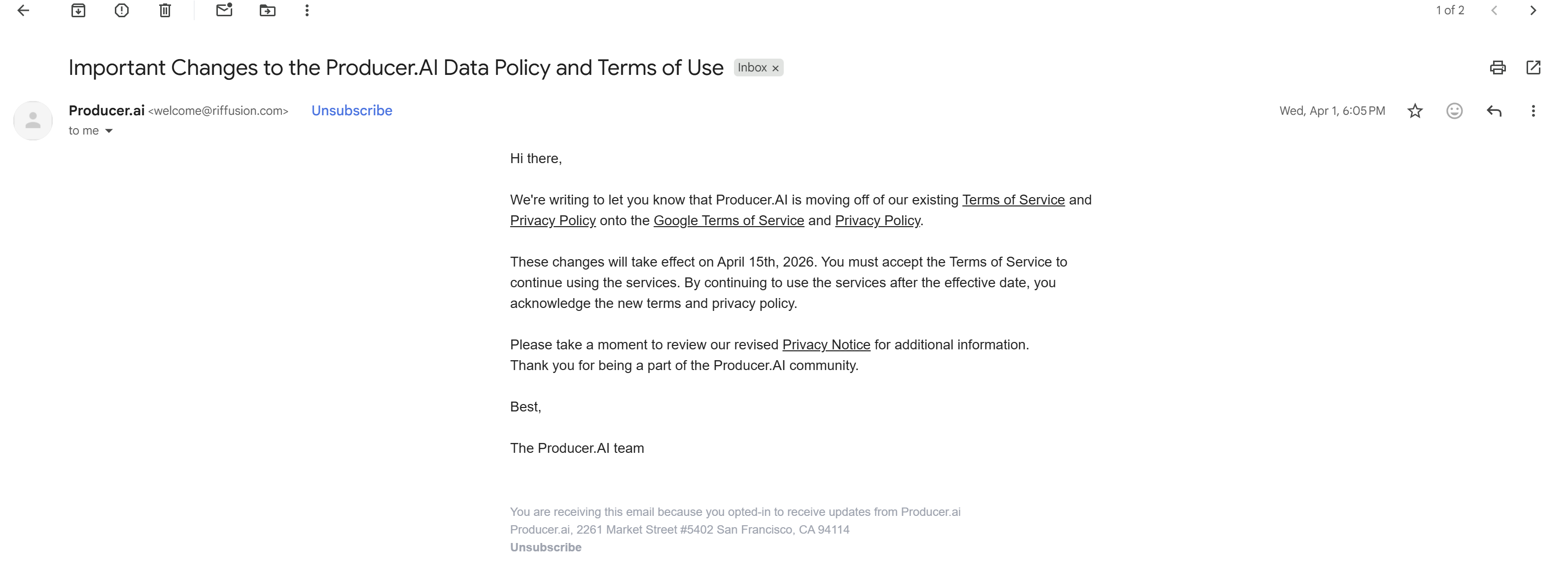
Open the email you want to check.
-
Click the three-dot menu (⋮) in the top right corner of the email, then select “Download message” this saves the email as a
.emlfile to your Downloads folder.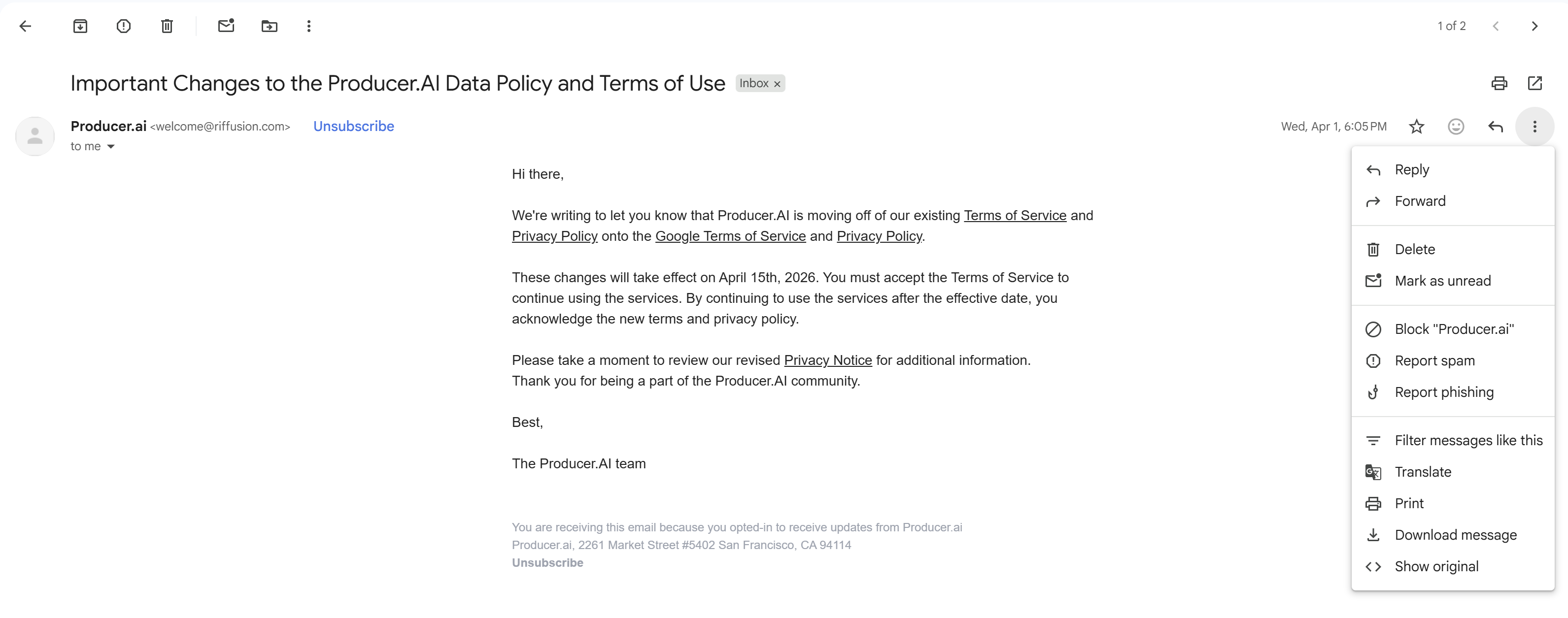
Step 2 : Open the Email Analyzer
Go to Sentinel Systems and click Analyzer in the top navigation bar. You’ll see this screen:
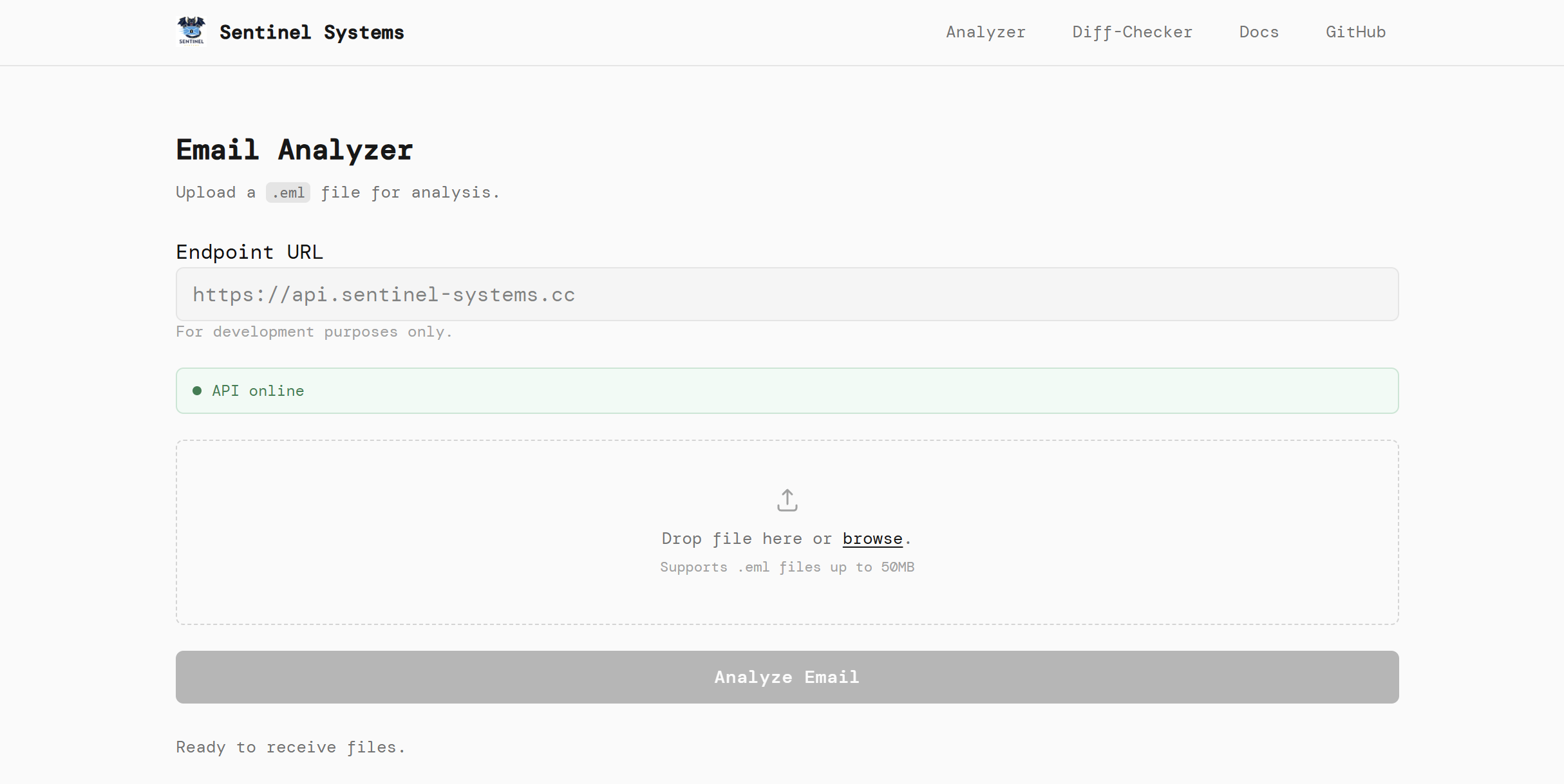
You’ll notice a green “API online” indicator that means the system is up and ready to go.
Step 3 : Upload Your Email File
Drag your .eml file from your Downloads folder and drop it into the dashed box. Or click “browse” to find it manually.
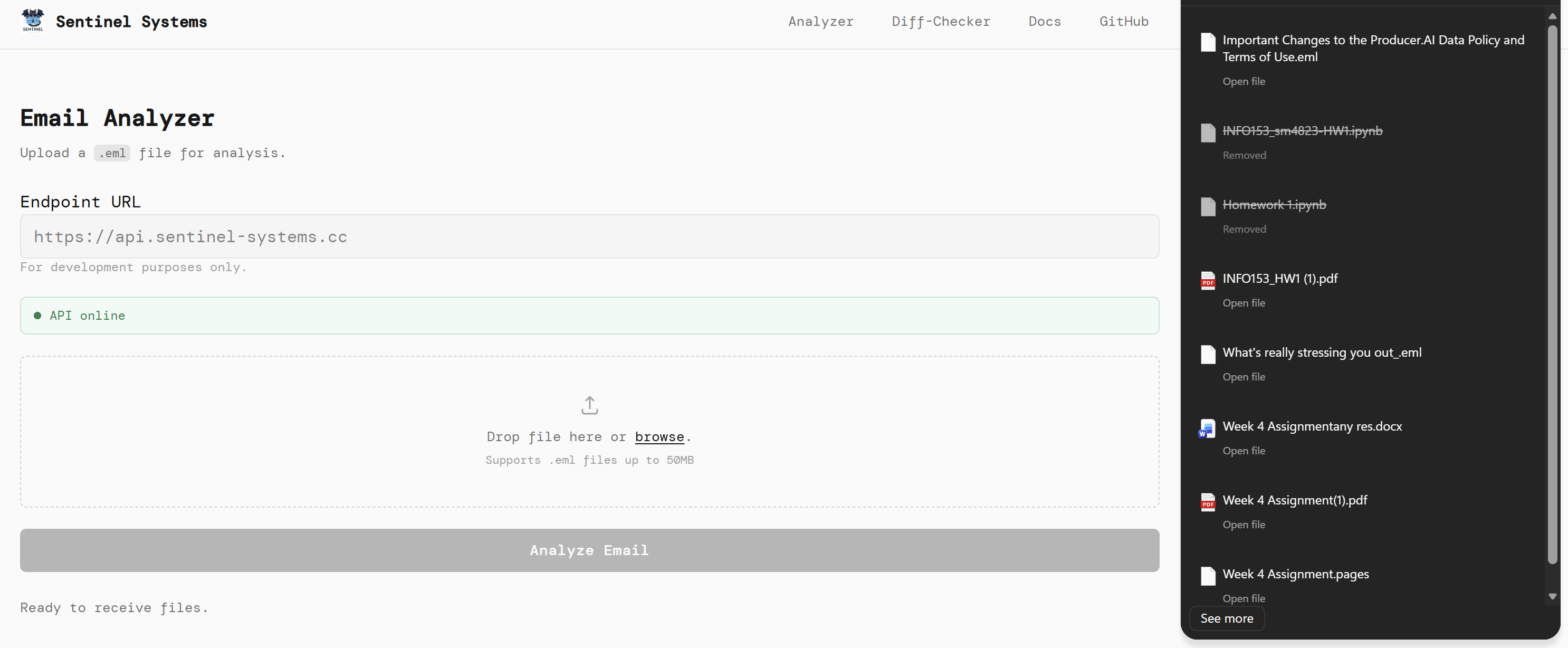
Once loaded, you’ll see the filename appear on screen and the “Analyze Email” button will turn black, meaning it’s ready.
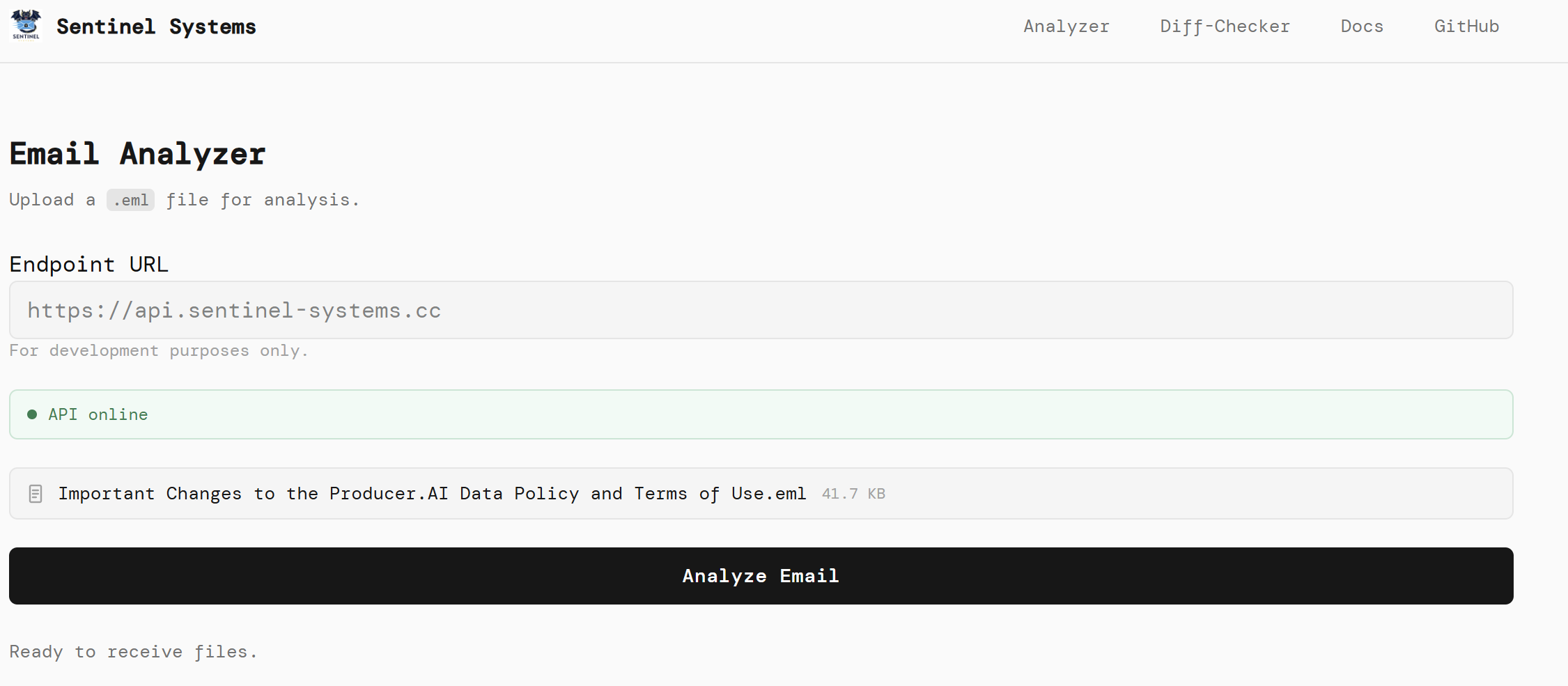
Click “Analyze Email”.
Step 4 : Read Your Results
After a few seconds, you’ll see your results:
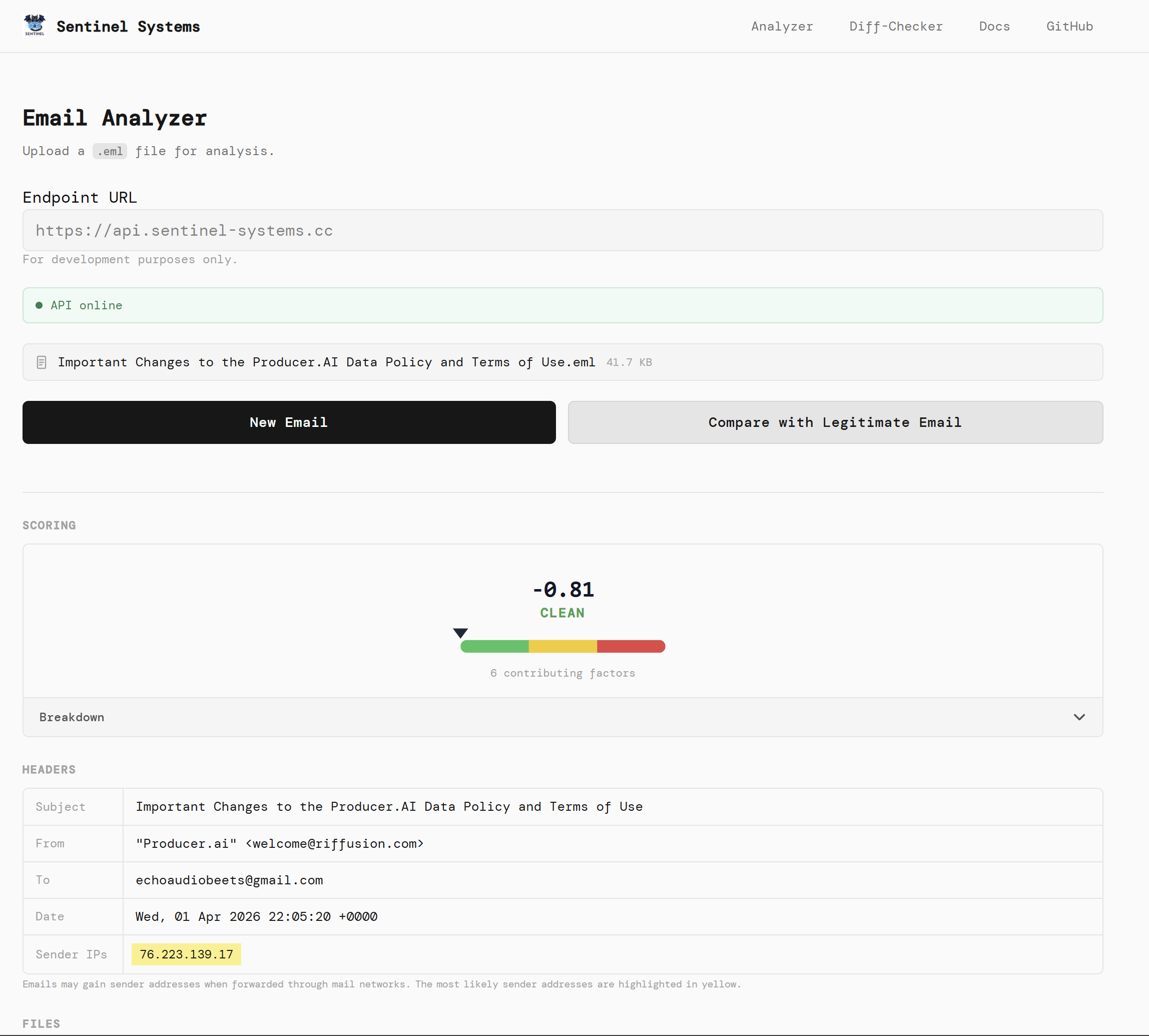
Here’s what the results mean:
- Score : A negative number (like
-0.81) means the email looks clean. A higher positive score means it’s more suspicious. - CLEAN / SUSPICIOUS : A plain-language verdict shown right below the score.
- Headers : Shows who sent the email, when, and from where.
- Sender Origin : A map showing where the email server is physically located.
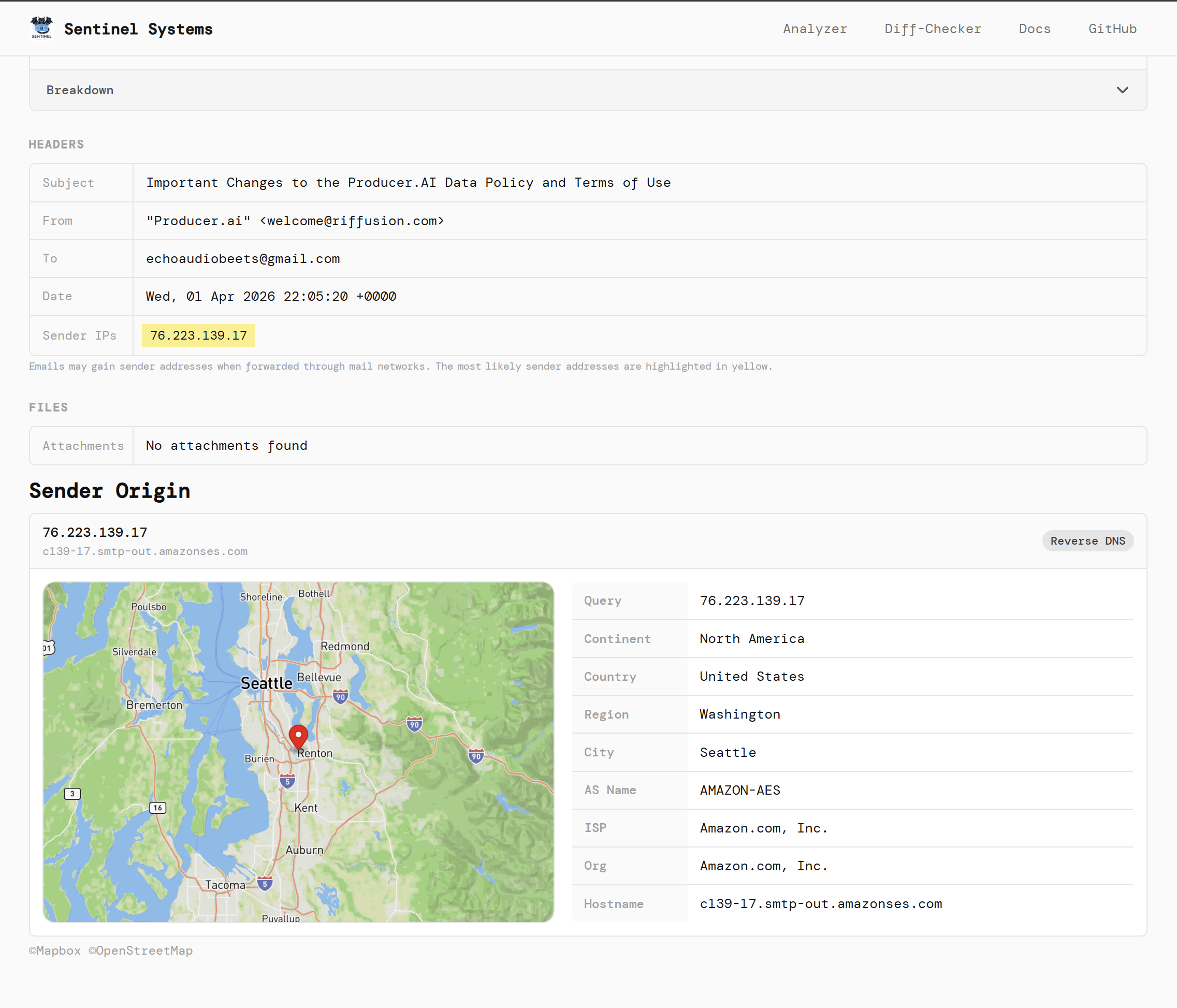
💡 Tip: Even a “CLEAN” result doesn’t guarantee an email is 100% safe. Trust your instincts, if something feels off, don’t click any links.
Part 2: Diff Checker
The Diff Checker is useful when you get an email that looks like it’s from a company you know (like your bank or a streaming service), but something feels off. You compare it against a real email from that same sender to spot differences.
Step 1 : Open the Diff Checker
Click Diff-Checker in the top navigation bar.
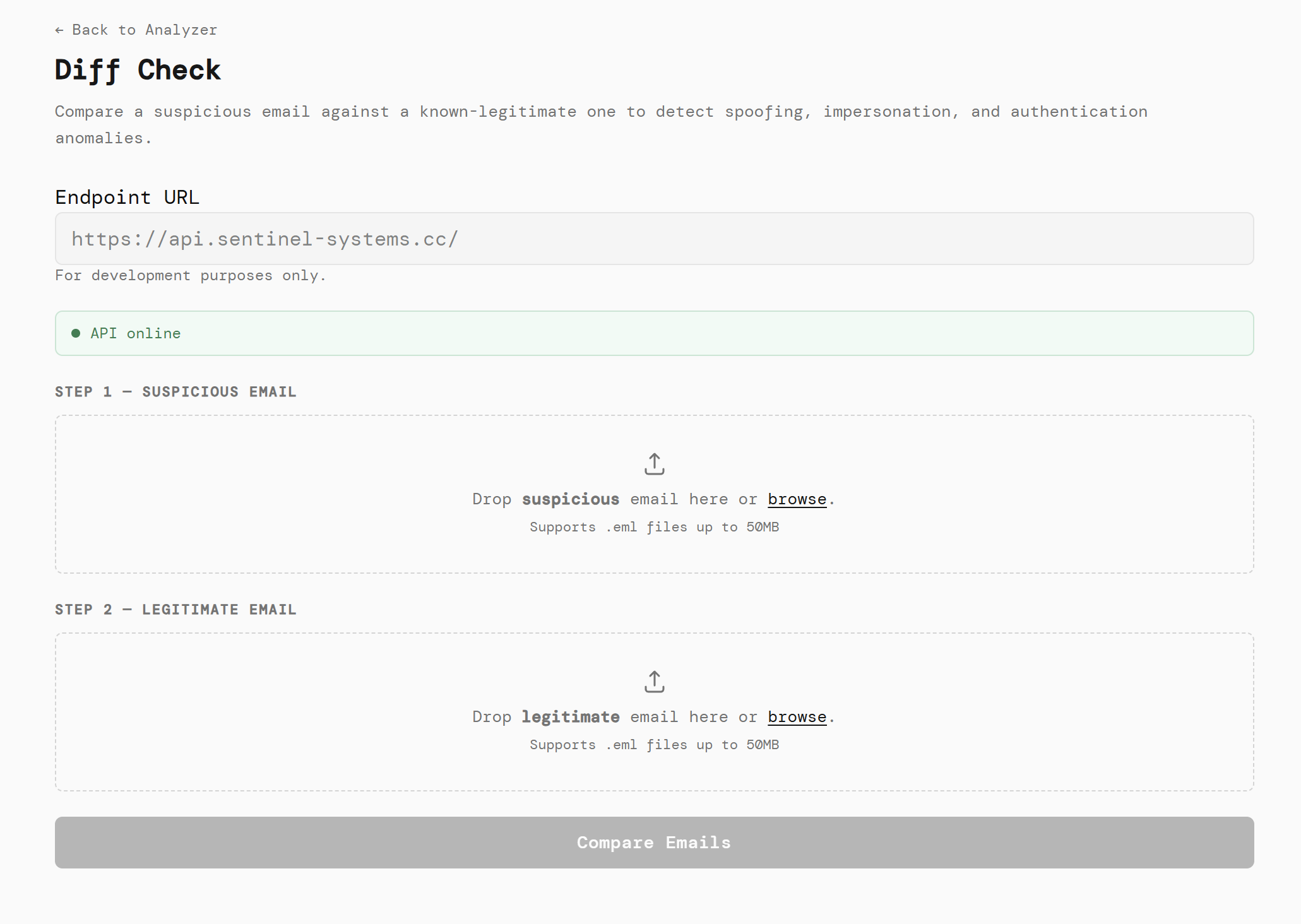
You’ll see two upload areas:
- Step 1 : Suspicious Email: the email you’re not sure about
- Step 2 : Legitimate Email: a real email you’ve received from the same sender before
Step 2 : Upload Both Emails
Upload your suspicious email into the first box, then a known-good email into the second box. Follow the same export steps from Part 1 to get both as .eml files.
Once both are loaded, the “Compare Emails” button will turn black.
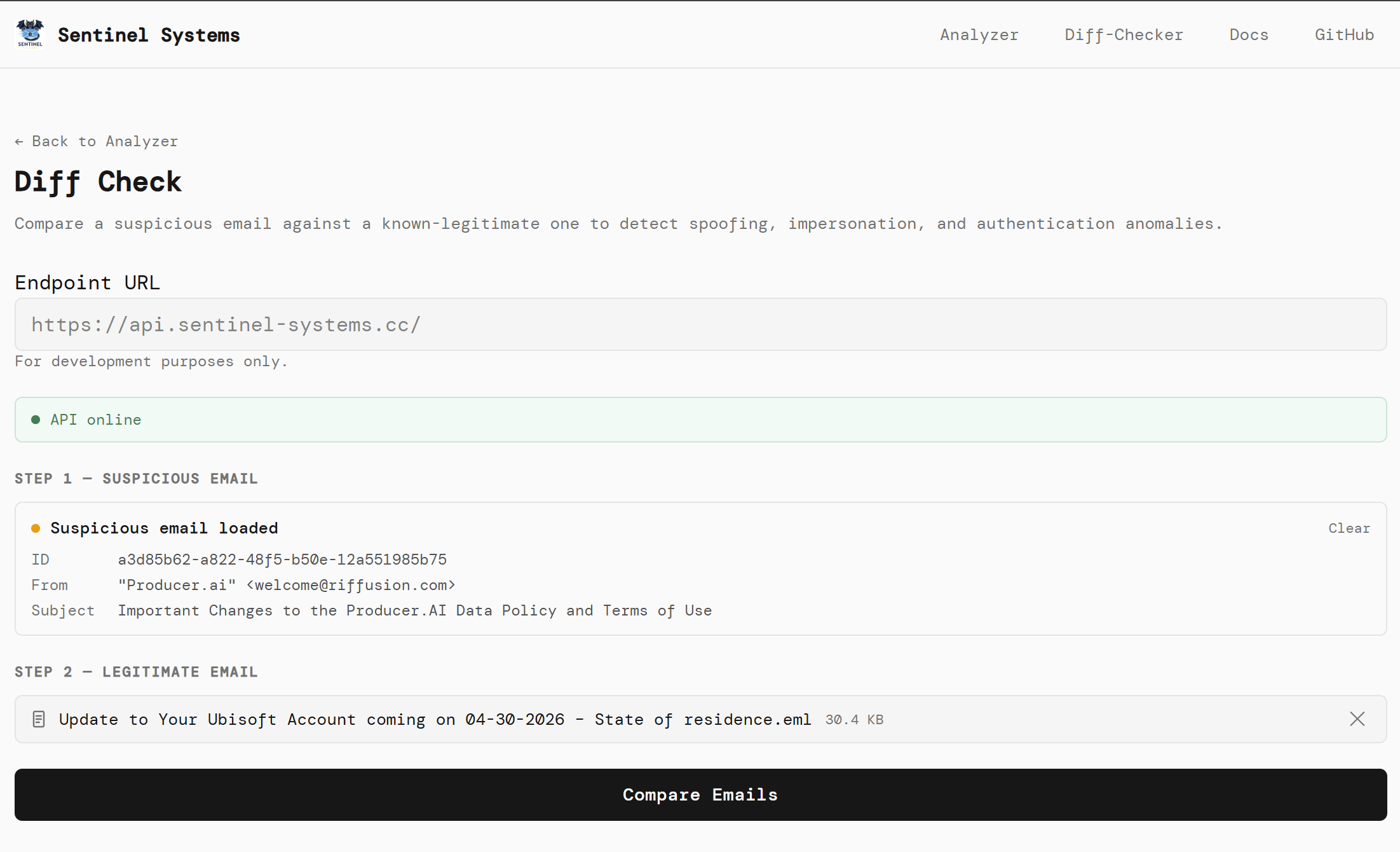
Click “Compare Emails”.
Step 3 : Read the Comparison Results
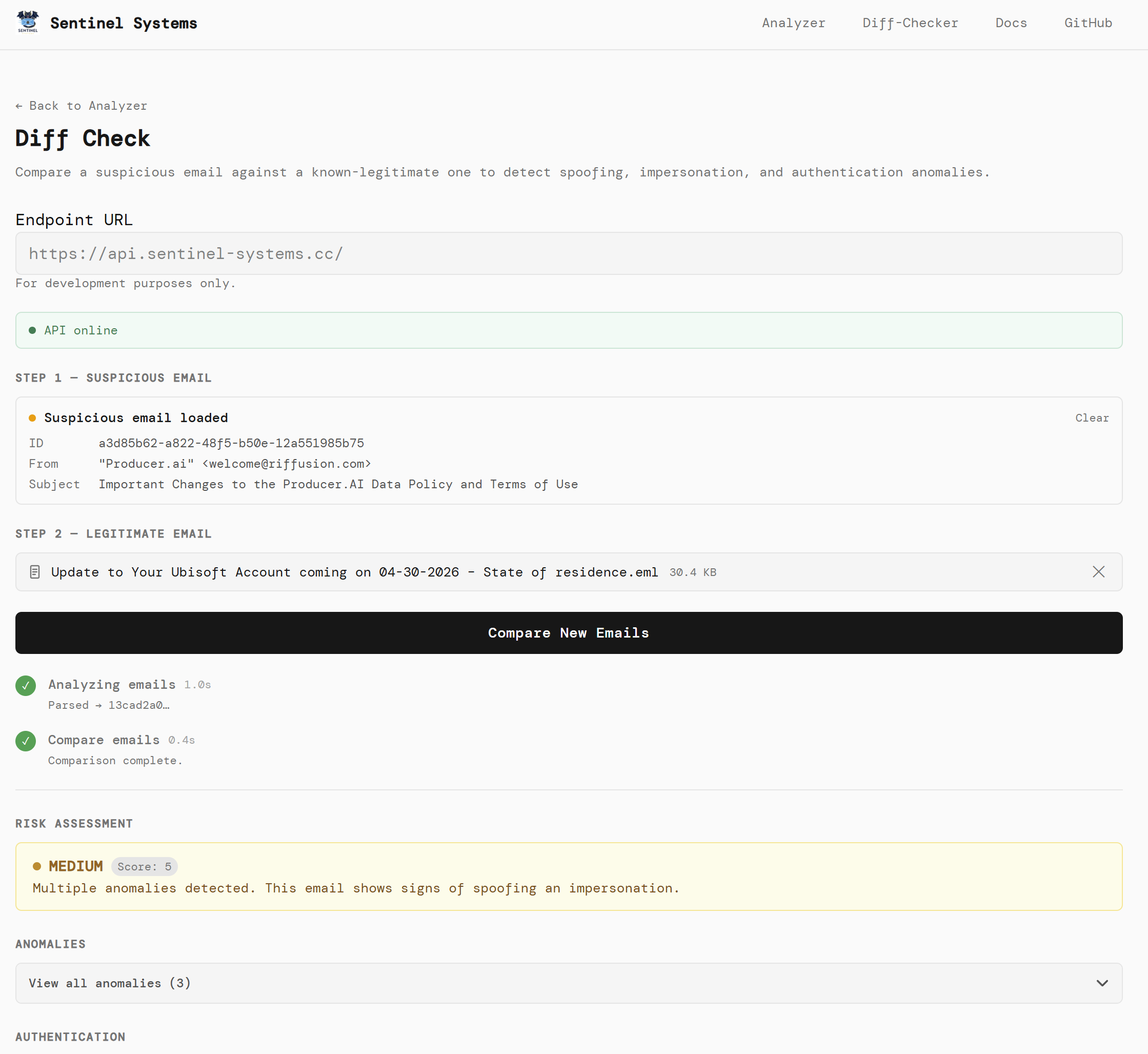
The results include:
- Risk Assessment : An overall verdict like CLEAN, MEDIUM, or HIGH, with a score and a short explanation.
- Anomalies : Specific things that don’t match between the two emails (e.g., different sender domains).
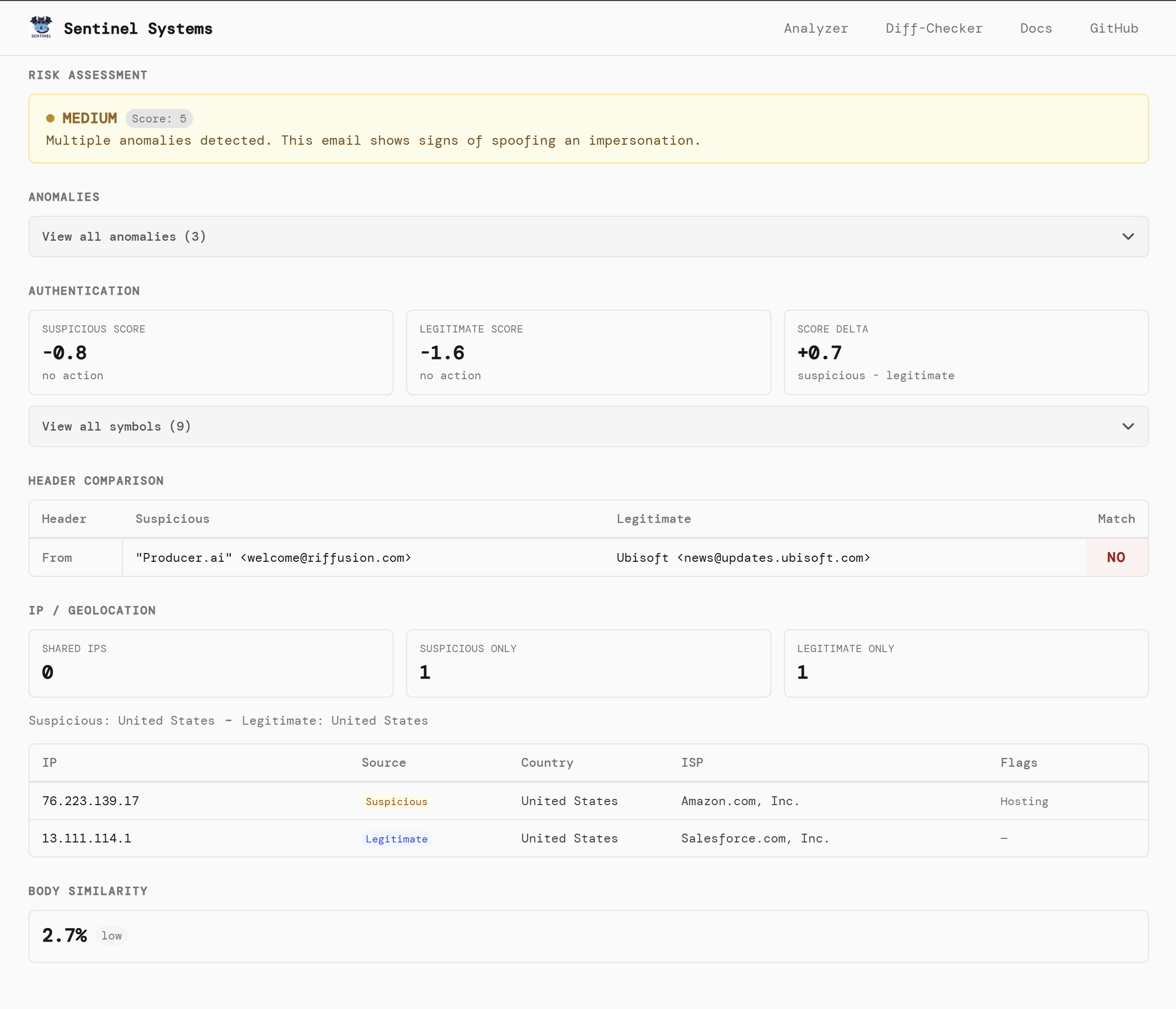
- Header Comparison : A side by side table showing fields like “From” for both emails. A red “NO” in the Match column means they don’t match, a red flag.
- IP / Geolocation : Shows whether the two emails came from the same servers.
- Body Similarity : How similar the actual content of the two emails is. A very low percentage (like 2.7%) means the emails are very different, another warning sign.
Quick Reference
| Tool | Best For |
|---|---|
| Email Analyzer | Checking a single suspicious email |
| Diff Checker | Comparing a suspicious email against a known-real one |
Both tools support .eml files up to the current API-reported limit.
Frequently Asked Questions
Do I need to create an account? No. Sentinel Systems works without any sign up or login.
Is my email data saved? Emails are only stored for 15 minutes long.
What if the API shows as offline? The system may be temporarily unavailable. Try again in a few minutes.
What’s a .eml file?
It’s a standard file format for emails. Most email clients (Gmail, Outlook, Apple Mail) let you export emails in this format.